How
to Download and Install Crossword Weaver
Step
1 - Downloading Crossword Weaver
If
the download has not already begun, click the Download button.

When
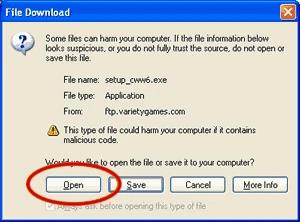
you click the button above, a screen will appear that looks something
like this:
Choose
"Open" (or Run). This will save the setup file on your Desktop
(if you click "Save" you will need to select Desktop in
you "Lookin:" folder).
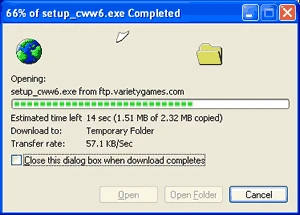
The
download of the program will begin. It should only take a few minutes.
Step
2 - Installing Crossword Weaver on your computer
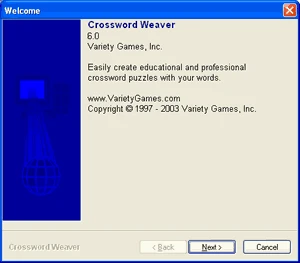
After
downloading Crossword Weaver, installation should begin automatically
and the "Welcome" screen should appear. Click "Next"
to begin installation.
If
it does not appear you can begin installing the program by clicking
on the "setup_cww.exe" folder on your desktop.
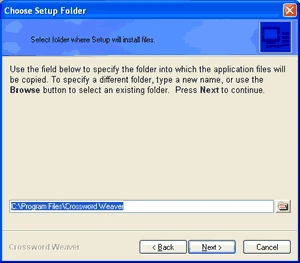
The
next step is to select the location where Crossword Weaver will be
installed. We recommend you install it in your Program Files folder.
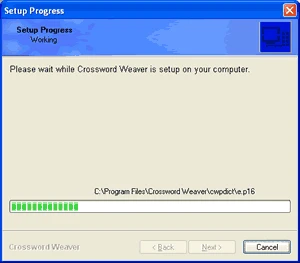
Installation
will only take a few seconds.
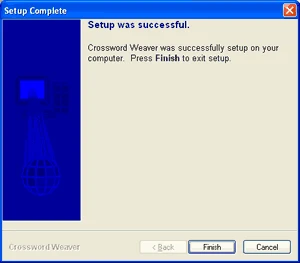
Select
"Finish" to complete the installation process.
Step
3 - Start Crossword Weaver.
Clicking
"Finish" will open Crossword Weaver.
To
open Crossword Weaver in the future, simply click on the Crossword
Weaver icon on your desktop, or click on the Start button, choose
Programs, then Crossword Weaver.
Step
4 - How to buy Crossword Weaver.
You
can buy a license to unlock the demo at any time, before, during or
after downloading. The license number is an unlocking code that is
specific to your name. When you enter your name and license number
into the Crossword Weaver demo, it unlocks and lets you use all of
its features immediately.
If
you upgrade to a new computer, you can move Crossword Weaver to your
new computer for free. Your name and license number will also allow
you to unlock the program again if you lose it.
Click
here for online order form. The online ordering process is completely
secure and will give you a license number (unlocking code) immediately.
If
you want us to mail you a CD, you can also order one online.
To order by telephone. Call 1- or outside
USA and Canada call 1- during regular hours.
Also
want to make word search puzzles? Check out 1-2-3
Word Search Maker. To get more information or a free
demo, just click here.
If
you have problems:
- If
you can't find the file "setup_cww.exe" on your computer: Press
the Windows "Start" button, select "Find" or "Search," then
select "Files or Folders." Search for the file named "Crossword Weaver setup.exe".
Look in each drive starting with drive C:. (Hint: Change the "Look
in:" field to "My Computer.") When the file is found, double click
on it to install the demo. If this doesn't work, please contact us.
- If
it won't install right: Occasionally a file transfer stops early.
Check if the size of the file setup_cww.exe (right-click on it and
select "Properties"). It should be about 1.9 MB. If your copy is too
small, try downloading again, maybe from a different one of our sites.
If you still have trouble, please E-mail us or call us.
- It
said it installed successfully, but now what do I do? Follow step
3, above. Once you start Crossword Weaver, it will suggest ways for
you to learn how to use it.
- If
you have any other trouble downloading or setting up our software:
Please E-mail us or call us at
1- (or ). We will make sure you have an opportunity
to try our software!
|
